Reviewer metrics on the Project Dashboard
You can view reviewer metrics in the Reviewer Metrics table on the Project Dashboard.
The following image shows an example of the Reviewer Metrics table.
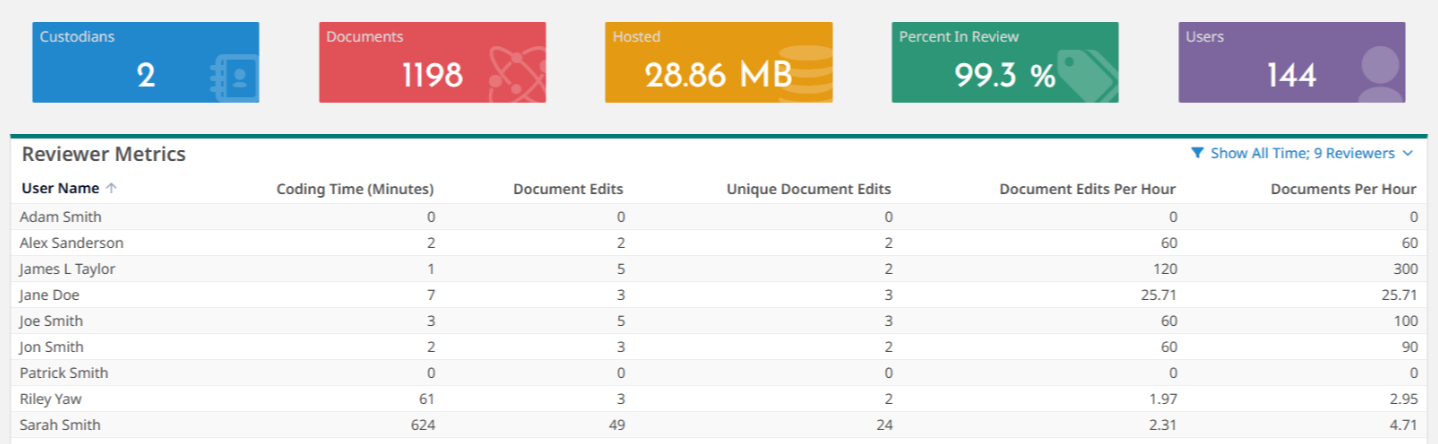
The Reviewer Metrics table provides the following information.
| Column Name | Description |
|---|---|
|
User Name |
The name of user who coded documents. |
|
Coding Time (Minutes) |
The total minutes spent coding each day, calculated based on the first and last coding activities. This measure is independent of login or logout times and excludes idle periods beyond the set threshold. |
|
Document Edits |
The number of times coding values are saved to a document. Each edit to the same document is counted individually. |
|
Unique Document Edits |
The number of unique documents to which coding values are saved. Each document is counted once, regardless of the number of edits made to it. |
|
Documents Edits Per Hour |
The number of times documents are coded per hour of coding time by the user. Each document edit is counted in this calculation. |
|
Documents Per Hour |
The number of unique documents coded per hour by the user. Each document is counted only once for this calculation. |
Applying filters for reviewer metrics
You can sort the table by any column. By default, the table displays metrics for the previous day. You can apply filters to view metrics for selected reviewers and a specific date range.
To apply filters to the table, follow these steps.
-
At the top right of the table, click the filter
 icon.
icon. -
In the Filters dialog box, do the following.
-
To view all-time metrics, in Date Range, select the Show All Time check box.
-
To view metrics for a specific date range, in Date Range, select an option from the operator dropdown and then select a date from the date field.
-
To view metrics for one or more reviewers, in Reviewers, select the reviewers from the list.
-
To view metrics for all reviewers, select All.
-
Click Apply to apply the filters.
-
To clear the applied filters, click Reset.
-
The following list provides related topics.
-
To view Project Dashboard, refer to View Project Dashboard.